Launch · Updated October 13, 2026
Publish a website you made with ChatGPT or Claude
You have the code, now it needs a home. Get the files out of the chat, import them, publish in one click and put the site on your own domain — then keep changing it by chat.
- Time
- 4 min
- Steps
- 6
- Level
- Beginner
ChatGPT and Claude are good at writing a website. Then the conversation ends, and you're left with a page of code and no idea where it should live. This guide takes those files and puts them online, on your own domain if you like, and keeps them editable by chat.
It works for the two things a chat usually gives you: a plain site (an index.html, maybe a stylesheet and a few images), or a full project with a package.json, such as a Vite or React app.
Before you start
- The files the chat wrote. All of them, with the names it gave them.
- A Firelent account. Importing and publishing to a
firelent.appaddress don't need a paid plan. - The Pro plan, for your own domain. Custom domains are part of Pro.
Get your files out of the chat
Make a new folder on your computer for the site. Then save every file the chat gave you into it, under exactly the name the chat used. If it offers a download, use it; otherwise copy each code block into a text editor and save it with the right name and ending, like index.html, style.css or script.js.
Two things decide whether the site works once it's online:
- The front page is called
index.htmland sits in the top of the folder, not in a subfolder. That's the page visitors see first. - Every file the code mentions is really there. If
index.htmlloadsstyle.cssorimages/logo.png, those files have to exist at exactly that place in the folder.
If the chat built a full project with a package.json, keep its whole folder structure as it is. You don't need to install anything or run a build: Firelent does that.
Import the folder into Firelent
In Firelent, click View All in the sidebar, then Import. The Import project dialog opens.
- From your computer: open the Upload tab, click Choose a project folder and pick the folder you just made.
- From GitHub: if the code is already in a repository, connect GitHub, choose the repository and its Branch.
Click Check. Before anything is imported, Firelent looks at the files and tells you what kind of project it is and what you can do with it under What you can do: edit it with AI, preview it, publish it. Dependency folders, build output and .env files are skipped automatically, so the secrets in a .env file are never imported. Click Import.
A folder can hold up to 3,000 files and 25 MB of code; images and fonts can be up to 10 MB each. ZIP files aren't read, so unpack an archive before you upload the folder.
Publish it
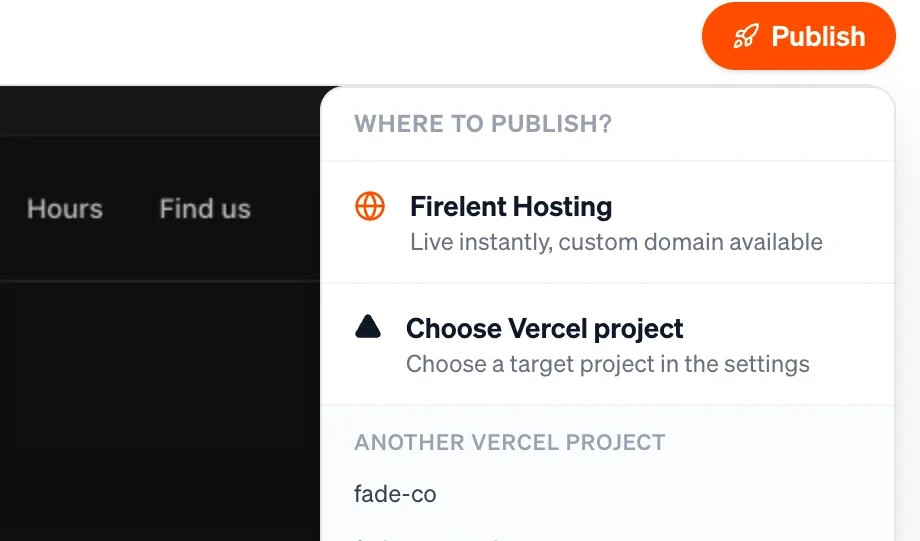
Open the imported project and click Publish in the top right.
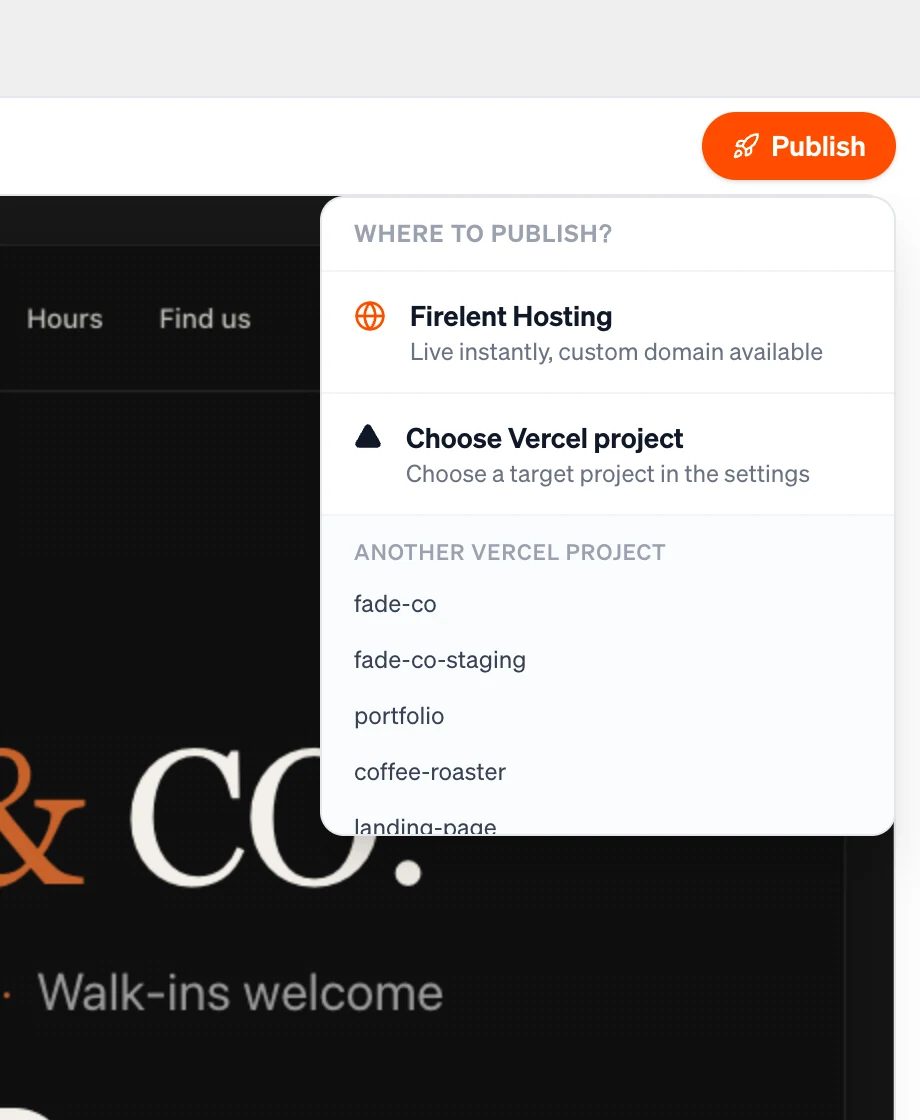
Which option fits depends on what the chat built:
| What you have | Where it goes |
|---|---|
A plain site with index.html in the top folder | Firelent Hosting — live in seconds at a firelent.app address |
| A Vite, Create React App or static Next.js project | Your own Vercel account — connect it once, and Firelent builds and deploys |
| A Next.js app that renders on a server | You can edit it with Firelent, but not publish it from here yet |
Open the address once it's live and click through every page, on your computer and on your phone.
Put it on your own domain
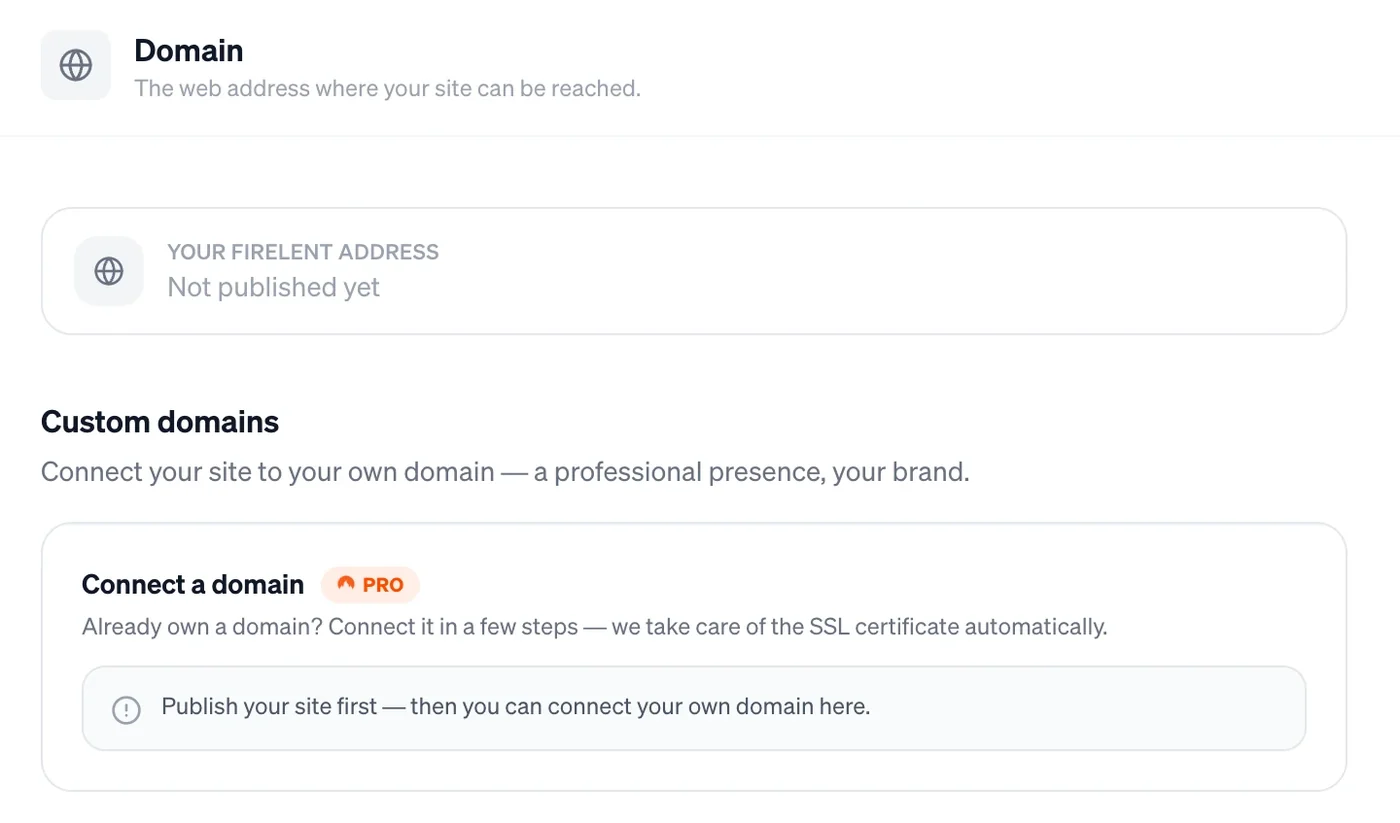
Your site already works at its firelent.app address. To move it to your own domain, like mybakery.com, follow Put your website on your own domain: it covers which records to add at your domain provider and what to do if the status won't turn Live. Firelent takes care of the SSL certificate.
Keep changing it by chat
This is where the chat you started in usually stops being useful: every change means copying code back and forth. In Firelent, you describe the change in the project's chat — “make the opening hours bigger”, “add a page for our cakes” — and Firelent edits the files directly. Asking questions and planning are free; a change costs credits, and if it fails on our side, they come back.
Publish again whenever you want a change to go live.
When something doesn't work
- “Import not possible” or no usable files. The folder may only contain skipped files, or a ZIP. Check that your HTML, CSS and image files are really in the folder you picked.
- The site loads without any styling. The stylesheet's name in
index.htmldoesn't match the file. Compare them letter by letter, including upper and lower case. - Images are missing. They're not in the folder, or not at the path the HTML uses. Open
index.htmland look forsrc="…"to see where each image is expected. - Firelent Hosting isn't offered for a plain site. There's no
index.htmlin the top folder. Rename your main page, or move it out of its subfolder, and import again.
Where you are now
The site you made in a chat is live on its own address, and you can keep changing it by chat.